

AutoCAD for mechanical design helps engineers and drafters produce precise 2D drawings and create 3D models of parts and assemblies. Its career value comes from practical drafting skills, clear technical documentation, and the ability to work within digital design workflows. For mechanical component and manufacturing documentation, AutoCAD Mechanical adds specialized tools that general-purpose AutoCAD doesn’t focus on.
That makes the choice less about which software is universally best and more about the work you want to do. Employers may value your ability to interpret drawings, apply dimensions and tolerances, organize layers, and communicate design intent, not simply your familiarity with a software name.
This guide compares general-purpose AutoCAD, AutoCAD Mechanical, and other CAD approaches for mechanical work. You’ll see where drafting and 3D modeling skills fit into career paths, which complementary capabilities can strengthen your profile, and how to weigh training and credentials against your goals in the UAE.
Key Takeaways
- Compare general-purpose drafting and 3D modeling with specialized mechanical documentation tools to identify the better fit for your design tasks.
- Build skills in dimensions, tolerances, layers, and technical drawing workflows to make your CAD knowledge more practical.
- Connect drafting and modeling capabilities to potential roles across design, product development, and manufacturing.
- Use the decision guide to weigh 3D modeling needs, workflow requirements, and alternatives before choosing a CAD path.
- Explore hands-on AutoCAD 2D and 3D training when structured practice is your next step toward stronger technical skills.
AutoCAD for general-purpose drafting and 3D modeling
AutoCAD supports 2D drafting and 3D modeling across architecture, engineering, and construction workflows. For mechanical tasks, choose tools according to whether you need precise drawings, three-dimensional parts, or specialized documentation.
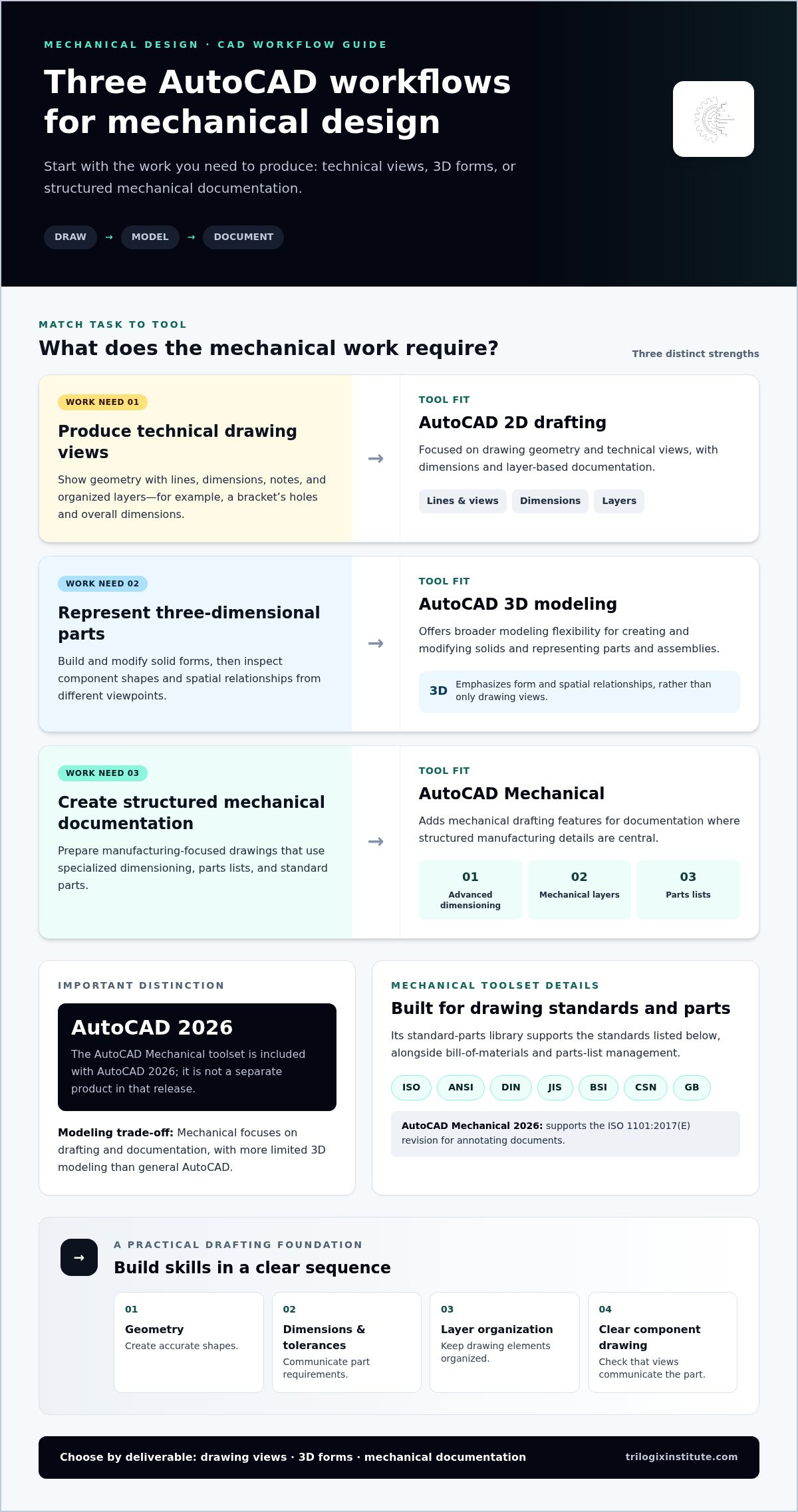
AutoCAD Mechanical is a toolset included with AutoCAD 2026, rather than a separate product in that release. It adds mechanical drafting features, while general-purpose AutoCAD remains useful for flexible drafting and 3D modeling.
2D Drafting
AutoCAD 2D drafting creates technical views with lines, dimensions, notes, and organized layers. For example, a designer can document a bracket’s holes and overall dimensions in a drawing. Mechanical drafting adds task-specific support: AutoCAD Mechanical includes advanced dimensioning, mechanical layer management, and parts-list tools. These features distinguish it from general-purpose drafting when drawings require structured manufacturing documentation.
For beginners, a mechanical drafting course should progress from drawing geometry to dimensions, tolerances, and layer organization. Practise by creating a simple component drawing, then check whether its views communicate the part clearly. This sequence builds drafting fundamentals before you add advanced annotations or reusable drawing elements.
3D Modeling
AutoCAD 3D modeling creates and modifies solid forms, allowing designers to represent mechanical components and assemblies. A simple workflow is to build a solid, adjust its geometry, and inspect the result from different viewpoints. Compared with 2D drafting, 3D modeling emphasizes shape and spatial relationships; compared with specialized mechanical documentation, it offers general-purpose modeling flexibility.
AutoCAD Mechanical’s focus is mechanical drafting and documentation, while general AutoCAD supports broader 3D modeling workflows. The Mechanical toolset is described as having limited 3D modeling compared with AutoCAD. Choose based on whether your priority is producing component documentation or developing and modifying three-dimensional forms.
Which tools support mechanical drafting? AutoCAD Mechanical provides advanced dimensioning, layer management, and bill-of-materials and parts-list management. Its standard-parts library supports ISO, ANSI, DIN, JIS, BSI, CSN, and GB standards; AutoCAD Mechanical 2026 supports the ISO 1101:2017(E) revision for annotating documents.
What is the current AutoCAD subscription price in the UAE? The subscription amount depends on the term and purchase arrangement. Compare the applicable plan and billing period before choosing; no price is stated here.
What system requirements apply? AutoCAD 2024 requires Windows 10 version 1809 or later, or Windows 11, on a 64-bit system. Its basic requirements include 8 GB memory, a 2 GB GPU, and a 1920 x 1080 display; recommended memory is 32 GB.
Which file formats support exchange? AutoCAD supports DWG compatibility across design workflows. Use DWG to exchange CAD drawings between compatible workflows, and organize the drawing clearly for recipients.
| Option | Primary use | Mechanical workflow fit | Key distinction |
|---|---|---|---|
| AutoCAD 2D drafting | Technical drawing views | Dimensions and layer-based documentation | Focused on drawing geometry |
| AutoCAD 3D modeling | Solids and assemblies | Visualizing component shapes | Broader modeling flexibility |
| AutoCAD Mechanical | Mechanical documentation | Dimensions, parts lists, and standard parts | Specialized mechanical tools |
Choose general AutoCAD for flexible drafting and modeling, and the Mechanical toolset when specialized drawing documentation is central.
CAD skills and career opportunities
CAD proficiency connects drawing tasks with technical roles, but software familiarity alone is only part of the skill set. A mechanical drafter must translate design intent into readable drawings, apply dimensions consistently, and organize files so others can interpret them. Learning AutoCAD for mechanical design is most useful when you practise these tasks alongside software commands.
Build your skills in a practical sequence. Start with accurate geometry, then progress to dimensions and tolerances, layer organization, reusable blocks, and drawing references. For example, a bracket drawing can demonstrate clear views, correctly placed dimensions, and consistent layers. Later practice can include parametric constraints, templates, annotation styles, and external references.
Advanced workflows build on these foundations. Dynamic blocks, attributes, tables, sheet sets, and macros help manage repeated drawing tasks. AutoCAD also supports customization and automation with LISP, VBA, and Python. These tools matter most when you can explain the task they improve, such as applying a consistent drawing convention. A focused AutoCAD for mechanical design course can structure practice around relevant drafting workflows.
CAD skills can support several career directions, depending on the work you want to pursue. Potential roles include:
- CAD designer: develops and revises digital drawings for design work.
- AutoCAD draftsman: prepares technical drawings from design information.
- Product development engineer: uses design documentation within product development.
- 3D modeler: creates digital models that communicate component form.
- Manufacturing engineer: applies design documentation to manufacturing workflows.
- Electrical designer: prepares drawings for electrical design tasks.
- Architectural drafter: produces drawing documentation for architectural work.
These titles represent different responsibilities, not interchangeable job descriptions. A draftsman may focus on drawing accuracy and revisions, while product development or manufacturing work can involve broader coordination. Choose a target role first, then practise the drawings and documentation it requires.
A focused portfolio makes your skill level easier to assess. Include a dimensioned mechanical part, a drawing with organized layers, and a model or assembly showing how components relate. Add a brief note explaining your process, drawing choices, and approach to revisions. Keep your examples clear and relevant to the role you want.
For a structured route from drawing fundamentals to more advanced workflows, explore AutoCAD course options. Use the course content to plan practice around your chosen role, then strengthen your learning with examples that demonstrate accurate, organized work.
Make your examples concise and relevant to the role you want to show. Career paths listed for people with AutoCAD skills include CAD designer, AutoCAD draftsman, electrical designer, product development engineer, 3D modeler, manufacturing engineer, and architectural drafter.
Choose samples that clearly connect your drawings to your target path, and describe your contribution directly. A carefully selected body of work can show a coherent direction and how your drafting practice supports the responsibilities you want to take on.
3D modeling for mechanical design
AutoCAD can create and modify solids, mechanical components, and assemblies. AutoCAD Mechanical offers more limited 3D modeling than general-purpose AutoCAD. For simulation-focused work, distinguish a visual model from an analysis result: a model alone doesn’t validate performance.
A 3D model makes component shape and spatial relationships easier to inspect than a flat view. For example, a housing model can show its external form and how an opening sits within the body. An assembly can communicate how several parts fit together, supporting design reviews before documentation is prepared.
Use a clear sequence to build a mechanical model in AutoCAD:
- Define the part: identify its main form, such as a plate, shaft, or housing.
- Create the solid: build the initial geometry, then modify it to represent the component.
- Check the shape: inspect the model from different viewpoints for visible geometry issues.
- Build the assembly: position related components to communicate their spatial arrangement.
- Prepare the output: organize the model for review, documentation, or 3D printing.
This progression connects individual solids to a larger design. For instance, model a shaft and coupling separately before showing their relationship in an assembly. The model communicates form and fit visually, while a dimensioned drawing provides the measurements needed to describe each part precisely.
Model quality still depends on design intent and careful geometry. A component that looks plausible on screen may contain unclear features or relationships. Review important faces, openings, and connections before sharing the model. For an assembly, check how each component aligns with adjacent parts, then use drawings to communicate dimensions and tolerances.
What are the limitations of using AutoCAD for 3D mechanical design and simulation? AutoCAD Mechanical has more limited 3D modeling than AutoCAD, and a 3D model by itself doesn’t establish that a design will perform as intended. Match the software workflow to the required task: modeling, mechanical documentation, or engineering analysis.
For 3D printing preparation, AutoCAD 3D Drawing and Modeling covers creating and modifying solids, mechanical components, and assemblies, then preparing models for printing. A practical exercise could model a simple enclosure, review its geometry, and prepare the model for the intended output. The goal is a coherent digital shape, not an unsupported claim about print quality.
Choose the modeling approach based on the deliverable. Use solids and assemblies when the task requires visualizing components together. Use detailed drawings when dimensions, tolerances, and manufacturing notes communicate design intent. When the workflow centers on mechanical documentation, AutoCAD Mechanical’s specialized drafting features complement modeling rather than replace it.
For learners, a useful practice project combines both formats. Model a small bracket, create a related assembly view, and prepare a drawing that explains its key dimensions. This sequence builds the ability to move from three-dimensional form to readable documentation, a practical skill for mechanical design work.
Alternatives for mechanical design
Choose a CAD approach by the deliverable, not by the software label. A component drawing, a 3D assembly, and manufacturing documentation place different demands on the workflow. AutoCAD, AutoCAD Mechanical, and parametric 3D CAD represent distinct options to compare.
| Option | Best suited work | Useful strengths | Trade-off to consider |
|---|---|---|---|
| General-purpose AutoCAD | Flexible drafting and 3D modeling | Supports 2D drawings and solids | Mechanical documentation may need extra organization |
| AutoCAD Mechanical | Mechanical components and manufacturing documentation | Mechanical layers, dimensioning, and parts lists | Its 3D modeling is more limited than AutoCAD’s |
| Parametric 3D CAD workflow | Design tasks centered on editable model relationships | Can organize changes around model constraints | Evaluate fit with drawing and exchange requirements |
General-purpose AutoCAD fits work that combines flexible drafting with 3D modeling. For example, a designer creating a part model and related views may value both capabilities in one workflow. DWG compatibility also supports different design workflows, which can matter when drawings move between teams or stages.
AutoCAD Mechanical is the more targeted choice for mechanical documentation. Its tools include advanced dimensioning, layer management, and bill-of-materials and parts-list management. Its standard-parts library supports ISO, ANSI, DIN, JIS, BSI, CSN, and GB standards. Choose it when these documentation tasks are central, rather than assuming it is the stronger option for every 3D task.
A parametric 3D CAD workflow is another approach to consider when model relationships and revisions shape the task. For example, a design may need controlled changes to related features as dimensions change. Compare that workflow with AutoCAD’s support for parametric constraints, reusable blocks, templates, annotation styles, and external references. The deciding factor is which model-editing and drawing tasks you perform most.
Use this decision sequence to narrow the choice:
- Name the deliverable: identify whether the output is a 2D drawing, solid model, assembly, or parts list.
- Map the required tasks: note dimensioning, revisions, documentation, and file exchange needs.
- Compare the workflow: select general drafting, specialized mechanical tools, or a parametric modeling approach.
- Test a representative task: use one familiar component to assess drawing clarity and revision effort.
For a bracket drawing with manufacturing notes, AutoCAD Mechanical’s documentation tools may be a close fit. For a broader modeling task, general-purpose AutoCAD may be more suitable. If your workflow depends on changing model relationships, compare parametric tools using the same component and revision scenario. This like-for-like comparison clarifies capabilities beyond feature lists alone.
What is AutoCAD used for in mechanical design?
Mechanical teams use AutoCAD to create, revise, and share technical drawings. A component drawing can show its shape, dimensions, tolerances, and notes in one organized document. These details help colleagues reviewing or manufacturing the part understand the design intent.
For example, a mounting plate drawing can identify hole locations, edge dimensions, and material-related notes. Clear dimensioning supports accurate interpretation, while organized layers separate geometry, annotations, and reference information. A drafter can revise one drawing element without rebuilding the entire document.
AutoCAD Mechanical adds tools for mechanical documentation. Its advanced dimensioning features support precision, while bill-of-materials and parts-list management help organize component information. In an assembly drawing, a parts list connects the documented assembly with its components. These functions support documentation tasks rather than replace engineering decisions.
A typical drawing workflow can move through these practical steps:
- Set up the drawing: establish units, drawing area, and a layer structure for geometry and notes.
- Create views: represent a component with clear views, such as front, side, and top.
- Add dimensions: place measurements and tolerances where they clarify the part’s intended form.
- Annotate the design: add notes and labels that explain features or manufacturing requirements.
- Organize the assembly: use a parts list or bill of materials to identify documented components.
- Prepare the file: save and share the drawing in a DWG-based workflow when appropriate.
Mechanical drawings also support revision work. If a mounting hole changes position, update the relevant geometry and dimensions, then review connected notes. Consistent layers and annotation styles make edits easier to follow. A disciplined revision process helps prevent conflicting dimensions and overlooked details.
AutoCAD Mechanical’s standard-parts library supports ISO, ANSI, DIN, JIS, BSI, CSN, and GB standards. This range can help teams document standard parts across different workflows. Selecting a standard part and representing it consistently gives reviewers clearer context than an unexplained symbol or generic shape.
AutoCAD supports DWG compatibility across design workflows. This matters when a drawing moves between design, review, and documentation stages. Before sharing, check that dimensions remain readable, layers are understandable, and notes match the current geometry. These checks make the file more useful to the next person handling the design.
In practical terms, AutoCAD turns mechanical design information into structured drawings and component documentation. It is best suited to workflows centered on drafting, dimensions, annotations, and parts lists. For work requiring detailed engineering analysis, do not treat a drawing or model as proof of performance.
Trilogix Institute: TTI Dubai Foundation Electrical Engineering
Trilogix Institute is a practical next step if you want structured technical training alongside your CAD career planning. For learners focused on drafting and modeling, TTI Dubai Advanced AutoCad 2D & 3D offers hands-on technical training for building practical skills. It fits those seeking guided practice with AutoCAD rather than relying only on independent study.
TTI Dubai Foundation Electrical Engineering may suit learners who also want a foundation in electrical engineering. Choose training according to your goals: CAD practice for drafting and modeling, or electrical engineering foundations for broader technical learning.
To discuss your learning goals and explore the relevant course, contact Trilogix Institute.
Turn CAD knowledge into a focused next step
Your next step is to connect software practice with the work you want to do. Choose a project that reflects your direction, then identify the skills it demands: drawing accuracy, model development, technical documentation, or a combination. This makes further learning more purposeful than collecting software features without a clear application.
As you develop your portfolio, explain the decisions behind each drawing or model. Show how you organized the work, handled revisions, and communicated design intent. This context helps demonstrate practical judgment alongside your AutoCAD for mechanical design skills.
Training can help you build those capabilities through guided practice. Trilogix Institute offers TTI Dubai Advanced AutoCad 2D & 3D, TTI Dubai Foundation Electrical Engineering, and TTI Dubai Professional Culinary Arts. For a CAD-focused next step, explore the AutoCAD course and consider how it fits your learning goals.
Explore your training options, then take the next step toward purposeful technical learning.
Frequently Asked Questions
Why AutoCAD Is Important for Mechanical Engineers?
AutoCAD helps mechanical engineers communicate design intent through editable digital drawings and models. This is useful when a team needs to review a component, document a change, or share design information across workflow stages. Engineers can use CAD proficiency alongside technical judgment: software represents a design, while engineering knowledge guides decisions about its purpose, constraints, and requirements.
What is AutoCAD?
AutoCAD is computer-aided design software used to create and modify digital drawings and models. A user might draft a component in two dimensions, then model its form in three dimensions for review. Its general-purpose tools support work across fields such as engineering, architecture, and construction. Mechanical users can also work with the AutoCAD Mechanical toolset for specialized drawing documentation.
How can I create mechanical drawings and manufacturing documentation in AutoCAD?
Begin with the component’s design information, then create a drawing with the required views and identifying details. Check that dimensions agree across views, and make revision notes clear when geometry changes. For an assembly, identify its components and organize supporting parts information. Before sharing, review the drawing as a manufacturing document: readers should be able to interpret its geometry, annotations, and component references.
Are there AutoCAD training courses or authorized resellers in the UAE?
AutoCAD training is available in the UAE through Trilogix Institute’s TTI Dubai Advanced AutoCad 2D & 3D course. The institute describes its technical courses as hands-on and instructor-led, supporting learners who want guided practice rather than self-paced study. Training and authorized software resale are distinct matters: this course information describes instruction, not an authorized-reseller designation.


